


Expo Go
4.3498.00 Reviews
App Specs
- Version
- 58.0.5
- Updated On
- License
- Free
- Downloads
- 5,000,000+
- Developer
- Expo Project
- Categories
- Libraries & Demo
- Platform
- Android, iOS
Screenshots
 Analysis by AppCompare
Using Expo Go in a shared household can be surprisingly practical. I can picture one person building a small app while another checks the same project on a phone, without turning the family device into a permanent development workstation. That distinction matters: Expo Go is a way to open and preview Expo projects, not a general-purpose app builder where someone can create a finished product entirely on the phone. For a learner, parent, or curious housemate, it makes mobile testing visible and hands-on; the coding work still belongs in the wider development workflow.
A realistic evening use is a student making a simple screen on a computer, then asking a sibling to scan the project’s QR code and try it on a phone. The sibling can report that a button is hard to find or that text looks crowded on a smaller display. That kind of quick, real-device feedback is more useful than guessing from a desktop preview, and it gives a novice a concrete reason to test early. I’d treat the shared phone as a testing screen, though, rather than assume every project is suitable for casual browsing.
Keep the project and the device roles clear
Setup is easy when the person testing understands what is happening: the project is created elsewhere, and Expo Go opens it so its behavior can be checked. That boundary helps avoid a common misunderstanding. Installing the app does not by itself teach someone how to code, supply a finished template for every idea, or replace the tools used to build a project. I’d first ask the developer to explain what the QR code opens and whether the project is a personal experiment or something they are comfortable showing.
On a shared device, it is also sensible to keep ordinary household accounts and development work distinct. I would not hand over a phone unlocked with unrelated apps or private conversations available just because someone wants to try a demo. Open the project intentionally, let the other person test the relevant screens, then return to the usual device use. That is simple coordination, not a special Expo Go family feature, and it avoids implying that the app provides household profiles or parental controls.
People also need to coordinate around the project itself. If the developer changes code while someone else is testing, the display may refresh and the tester may suddenly see a different state. I find it helpful to agree on one small task at a time: “try the sign-in screen,” “check whether the text fits,” or “tell me what you expected this button to do.” Specific prompts produce better feedback than simply asking whether an unfinished app looks good. For a group learning session, one person can operate the computer while another tests on the phone, then they can switch roles.
What a household should expect from the preview
Expo Go is free, and it comes from Expo Project. It sits in the libraries-and-demo side of app catalogs rather than acting like a consumer service with a collection of ready-made household tools. Its purpose is tied to trying projects built with Expo, so its usefulness depends on having a project to open. Someone who only wants a polished app for budgeting, family calendars, or entertainment will be better served by choosing an app made for that job instead.
Age context matters even though the app’s content rating is Everyone. That rating can make the app itself suitable for a broad audience, but it does not tell me what an individual project will display or do. A demo can contain screens, text, or behavior chosen by its creator. With younger testers, I’d preview the project first and explain that they are looking at a work in progress, not a finished app with the reliability or safeguards they might expect from a mature product. The useful rule is to judge the demo and the developer’s instructions separately from the age label on the viewer app.
Worth Reading Before You Choose

Baby Panda World Brings Quick Play to Modern Phones, but Its Game Library Feels Busy

ESPN’s Live Game View Makes Following Close Games Easier

QuizzLand Review: A Good Fit for Short Trivia Breaks, Not Every Player

Basketball Stars: Multiplayer Is Fast, but Can It Recover When Matches Go Wrong?

WEBTOON Turns Phone Updates Into a Better Reading Routine

Link to Windows Runs on Shared Habits, Not Social Feeds
Where it fits among development options
Compared with building and installing a separate standalone app every time you change something, a quick project preview can make the feedback loop feel much lighter. That is the main reason I would reach for Expo Go when learning, showing an early idea, or checking how an interface feels on a real device. Compared with a desktop simulator, a phone preview also answers practical questions about touch targets and the way a layout reads in your hand. But it is not a substitute for testing a finished app in the form people will actually install, especially when a project depends on native capabilities that the preview setup does not cover.
That trade-off gives me a useful workflow tip: use the preview for frequent, small checks, then make a separate plan for the cases that need a fuller build or broader device testing. Don’t wait until a project is nearly finished to discover that one of its requirements does not fit the preview environment. If an important feature depends on a native module that is not supported in the setup, the convenience of quick reloading cannot solve that mismatch; a different development and testing route will be needed.
The app has an average rating of 4.8 from around 24,000 ratings, and it has passed one million installs. Those figures suggest that many people find a place for it in their workflow, but they are not a promise that every project will open smoothly or that it suits every beginner. I’d judge it by the kind of work at hand: it makes sense if you already have an Expo project or are learning with someone who does, and much less sense if you expect to write and publish a complete app from the viewer alone.
Your Mobile Development Companion
First off, let’s talk about what Expo Go really is. It’s an app that lets you preview projects built with the Expo framework. Think of it as your go-to app for testing and showcasing your React Native creations without the hassle of a full build process. For developers, it’s a dream come true because it cuts down on time and effort.
Getting Started with Ease
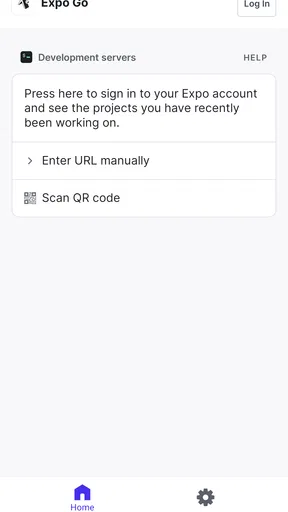
Installing and setting up Expo Go is a breeze. I just hit the download link from the App Store, and within minutes, I was ready to roll. After opening the app, you’re greeted with a clean and intuitive interface. The simplicity is refreshing—no clutter, just what you need. The app connects seamlessly with your Expo projects, allowing you to scan a QR code and immediately view your app in action.
Features Galore
One of the standout features for me was the live reloading. Imagine making a change in your code and seeing it reflected instantly on your device. It’s like magic! This feature alone can save you hours of compiling and deploying, especially when you’re in the thick of development.
Another neat feature is the ability to share your projects with others. Whether you’re working with a team or just want to show off your latest creation to friends, sharing is as simple as sending a link. Plus, it supports both Android and iOS, so you’re covered no matter what device you’re using.
Performance and Limitations
While Expo Go is packed with useful features, it’s not without its quirks. Occasionally, I noticed some lag when loading heavier projects. It’s not a deal-breaker, but something to keep in mind if you’re working on a particularly resource-intensive app. Additionally, while it supports many native modules, there are some limitations compared to building a standalone app. But for most development needs, it gets the job done beautifully.
Final Thoughts
So, is Expo Go worth your time? Absolutely. It’s a powerful tool for anyone interested in mobile development, whether you’re a seasoned pro or just starting out. The ease of use, combined with the robust feature set, makes it a must-have in your developer toolkit. Just be aware of its limitations and you’ll find it to be an invaluable resource. Go ahead, give it a try, and take your app development experience to the next level!
I’d add one practical habit to that recommendation: keep a short note of what you changed and what you want the tester to inspect. When a preview refreshes, it is easy to lose track of which adjustment caused a difference. A simple sequence—change one thing, reopen or refresh the project, then check that one thing—makes feedback easier to interpret. This is especially useful when a few people are sharing observations, since “the screen felt clearer” is less actionable than “the label now fits on one line on this phone.”
Choosing the right device and test moment
For a first look, a single phone is enough to catch obvious layout and interaction issues, but I wouldn’t treat one successful preview as proof that an app is ready for everyone. A screen that looks comfortable on the developer’s device may feel cramped on another. If a household has access to more than one supported phone, testing on a second device can reveal differences in readability or touch comfort without turning the exercise into a formal test lab. The useful question is not whether every device behaves identically, but whether the intended task remains understandable.
There is also a practical timing trade-off. Expo Go is most helpful when the developer is actively working and can respond to a tester’s feedback. Sending a project to someone who has no context may lead to confusion if a screen is unfinished or changes while they are exploring. I’d give the tester a sentence about the goal and a way to report what they noticed. That keeps a casual demo focused and makes the developer’s next change more deliberate.
Who will get the most from it
I’d recommend it to people learning React Native with Expo, developers who want a quick way to inspect an early interface, and teams that need a lightweight show-and-tell before investing in a more complete build. It can also help a nontechnical friend or relative give useful usability feedback, provided they know they are viewing a prototype. The strongest benefit is not that it removes development work; it makes the result of that work easier to see and discuss.
I’d steer away from it if you expect a no-code app maker, a ready-to-use household service, or a final installation that behaves exactly like a released product. It is also a poor fit as the only test route for a project whose essential behavior relies on native functionality outside the preview’s support. In those cases, a dedicated app-building tool or a fuller build-and-test workflow is a better match. The choice depends less on whether someone is a beginner or expert and more on whether their project fits the Expo preview approach.
Version, compatibility, and a sensible stopping point
The current version is 54.0.6, and the listed minimum operating system is 7.0. Before planning a shared demonstration, I’d check that the intended phone can run the app and that the developer has a project ready to open. That small check can save an awkward pause in front of a group. Expo Go is free and rated for Everyone, which makes trying the viewer low-friction, but the project itself still deserves a quick review before it is shown to children or to anyone using a shared device.
For me, the right stopping point is when the preview has answered the question it was chosen for. If the goal was to see whether a menu is understandable, record the feedback and return to development; there is little value in asking casual testers to judge every unfinished detail. If the goal is reliability, compatibility, or a finished release, move beyond the preview and test in the form that matches the intended app. That boundary keeps Expo Go useful without asking it to do a job it was not designed to do.
A measured household recommendation
Expo Go has been available since December 8, 2015, and its open-source development context is part of why it appeals to people who want to explore app creation rather than simply consume finished apps. I like it most as a bridge between code and conversation: a developer can show a real interface, and another person can react to it while it is still easy to revise. In a home where a phone is shared, that works best with a clear handoff, a project the tester understands, and respect for the device’s ordinary privacy.
My verdict is positive, with a specific boundary. As a free preview companion for Expo projects, it can make learning and early feedback feel immediate, and its cross-platform reach is useful when people around a project use different kinds of phones. It is not a substitute for coding tools, a guarantee that every native feature will work in the preview, or a family-management app. If you keep those distinctions in mind, it is an approachable way to bring a mobile project off the computer screen and into a real conversation.
Pros
- Easy setup for React Native projects.
- Live reloading streamlines development.
- Supports both iOS and Android.
- Extensive library of components.
- Strong community and documentation.
Cons
- Limited native module support.
- Requires internet for some features.
- Not suitable for large apps.
- Can be slower than native apps.
- Debugging can be challenging.
FAQs for Expo Go
What is Expo Go, and how does it work?
Expo Go is a powerful tool for developers to preview and test React Native applications on Android and iOS devices. It allows you to run your projects directly on a physical device without needing to build a native binary. Simply scan a QR code provided by your development environment, and Expo Go will load your app for easy testing.
Do I need to have coding knowledge to use Expo Go?
Yes, some coding knowledge is required to use Expo Go effectively. It's designed for developers who are working with React Native projects. Understanding JavaScript and React is essential to fully utilize Expo Go's capabilities, as it provides a platform to preview and debug applications during development.
Is Expo Go free to use, or are there any costs involved?
Expo Go is free to download and use. It provides a cost-effective way for developers to test their React Native applications without additional expenses. However, certain advanced features or services offered by Expo, such as their cloud services, may have associated costs. Check their official site for detailed pricing information.
Can I use Expo Go to test applications on both Android and iOS devices?
Yes, Expo Go is compatible with both Android and iOS devices. This cross-platform compatibility makes it an ideal tool for developers who want to test their React Native applications on multiple platforms without having to build separate binaries for each operating system. It's a versatile solution for cross-platform app development.
How secure is my data when using Expo Go?
Expo Go prioritizes security by ensuring that your data is handled securely during the app development process. However, as with any development tool, it's essential to follow best practices, such as using secure connections and keeping sensitive data off your development server, to further protect your information.


